
GitHub 地址: https://github.com/panteng/ie-blocker
IE-Blocker
Block outdated Internet Explorer from your website and display a friendly message of upgrading to modern browsers.
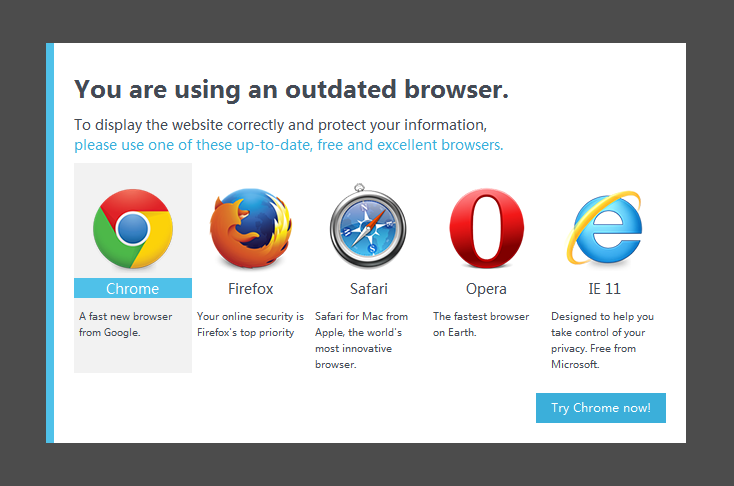
Live Preview
Please visit the websites below with IE 6-9.
Install
Install Manually
Simply download the latest version of IE-Blocker from this page. Unzip the file and place the ie-blocker folder into your projects.
Install Using Bower or Npm
Optionally, you can install IE-Blocker with Bower or Npm:
// With Bower
bower install ie-blocker

// With Npm
npm install ie-blocker
Usage
Manual Install
Include ie-blocker.css and ie-blocker.js inside the
<head>tag. Use conditional comments to make these codes only work in old version IE.<!--[if lte IE 8]> <link rel="stylesheet" href="ie-blocker/ie-blocker.css"> <script src="ie-blocker/ie-blocker.js"></script> <![endif]-->
Place the following html code before the closing
<body>tag. You can find the full code in template.html. Use conditional comments to make these codes only work in old version IE.<!--[if lte IE 8]> <div id="ib-container"> <div class="ib-modal"> ... </div> <div class="ib-mask"></div> </div> <![endif]-->That's it.
Options
img-path:
IE-Blocker uses some images to display browser icons. By default, IE-Blocker will look for these images in the img folder which locates at the same path of ie-blocker.js.
So if you want to place these images somewhere else, you need to add an attribute img-path to script tag. For example:<!--[if lte IE 8]> <link rel="stylesheet" href="ie-blocker/ie-blocker.css"> <script src="ie-blocker/ie-blocker.js" img-path="../images/browser_icons/"></script> <![endif]-->
Remember the img-path is relative to ie-blocker.js, not the html file.
Do not forget the '/' at the end.


 Select Language